

ATM Upgrade Schedule

How do I carry out a payment on eBNF Web via Secure Code?
1. Log in to eBNF Web
.png)
2. Insert your username
3. To generate the secure code go on your eBNF app
4. From bottom footer / menu, choose 'Secure Code'
5. Then choose Get secure code for login
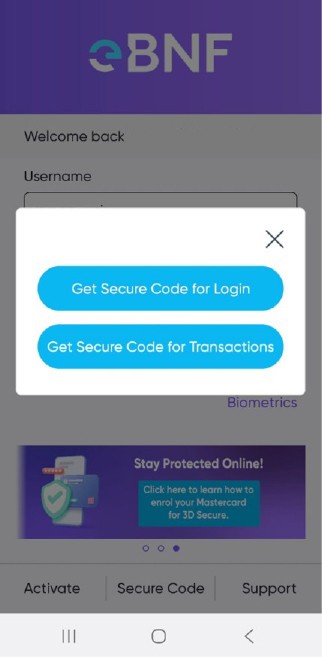
6. Enter your pin or biometrics
7. A code is generated and enter the secure code on the eBNF web
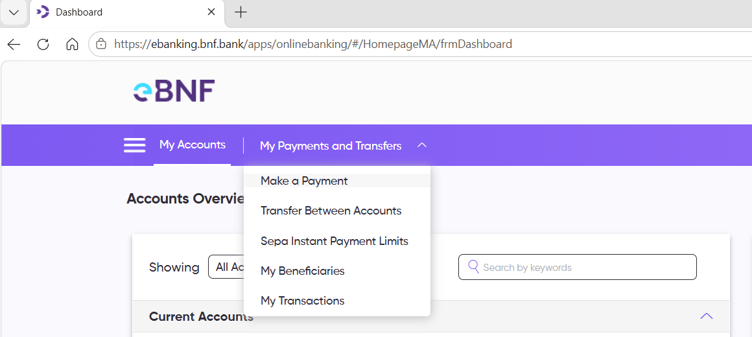
8. Click on My Payments and Transfers – Make a payment
9. Select an Account to transfer from
10. Select the Beneficiary or enter the details of the beneficiary, IBAN, SWIFT
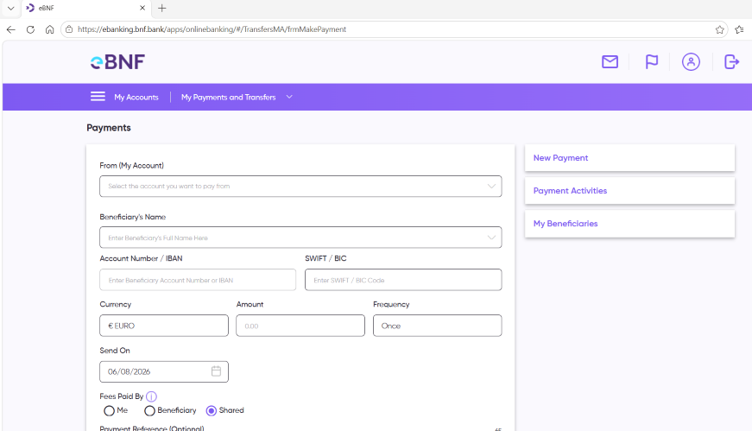
11. Insert Amount to transfer
12. Insert Payment Reference
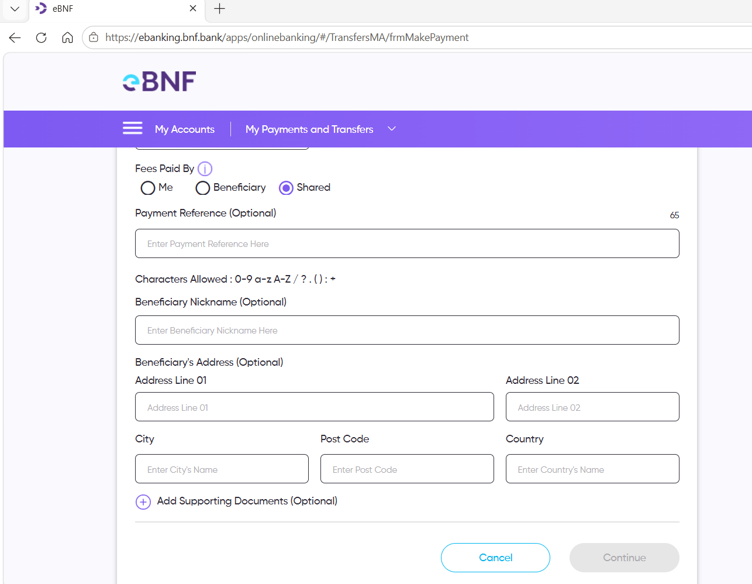
13. Press Continue
14. Review transaction details
15. To get secure code, open eBNF APP
16. From bottom footer / menu, choose 'Secure Code'
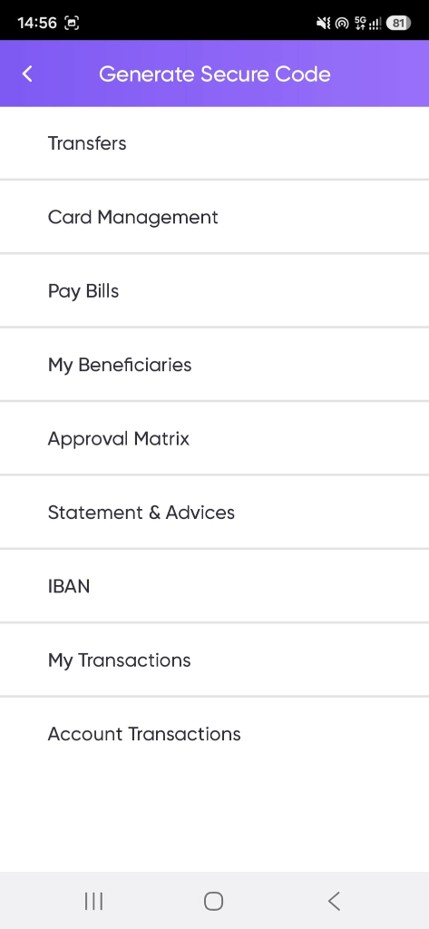
17. Choose 'Get Secure Code for Transactions'
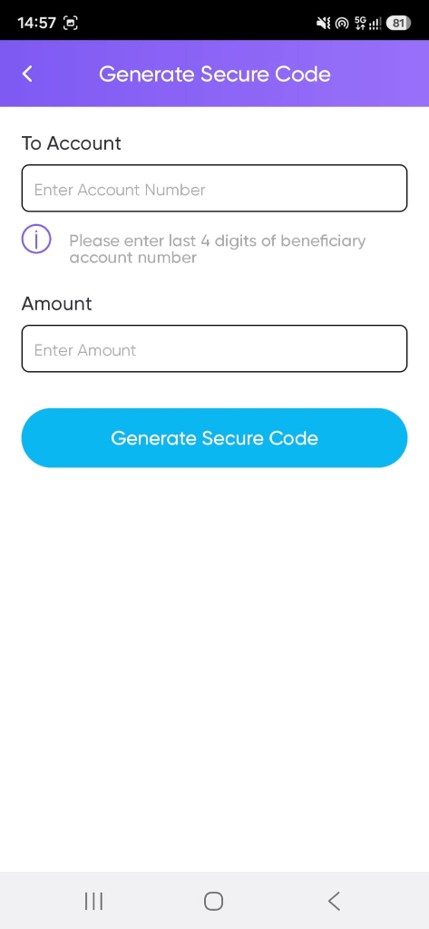
18. Choose from the options available (example 'Transfers' > Input last 4 digits of the beneficiary account number > input amount > click 'generate secure code'
19. Insert the last 4 digits of the Beneficiary account number and the amount of the transfer
20. Insert Secure Code on eBNF web
21. Press Submit
22. Payment is processed.
Note:
If you are a new user and would like to Activate and Log in your eBNF app, click here to find out more.


